> ## Documentation Index
> Fetch the complete documentation index at: https://mintlify-mintlify-add-letter-a-quickstart-82277.mintlify.site/llms.txt
> Use this file to discover all available pages before exploring further.
# Preview deployments
> Preview changes to your docs in a live deployment
Preview deployments are available on [Pro and Enterprise plans](https://mintlify.com/pricing?ref=preview-deployments).
Preview deployments let you see how changes to your docs will look before merging to production. Each preview creates a shareable URL that updates automatically as you push new changes.
## Creating preview deployments
Preview deployments are created automatically through pull requests or manually from your dashboard.
### Automatic previews
When you create a pull request, the Mintlify bot automatically adds a link to view the preview deployment in your pull request. The preview updates each time you push new commits to the branch.

 ### Manual previews
You can manually create a preview for any branch.
1. Go to your [dashboard](https://dashboard.mintlify.com/).
2. Select **Previews**.
3. Select **Create preview**.
4. Enter your branch name.
5. Select **Create deployment**.
## Redeploying a preview
Redeploy a preview to refresh content or retry after a failed deployment.
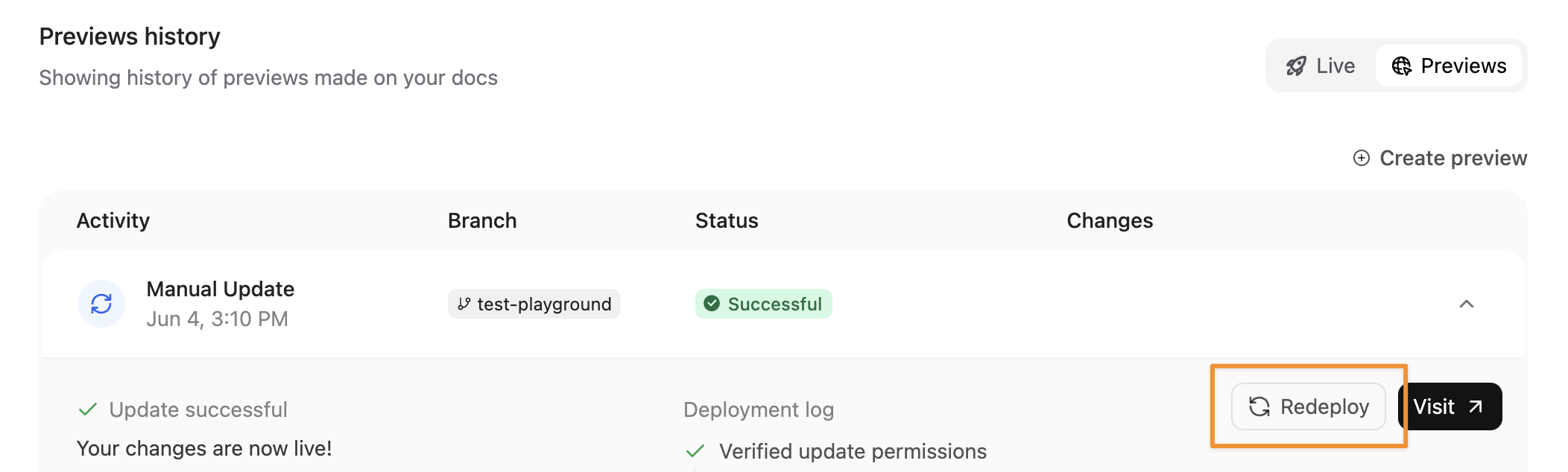
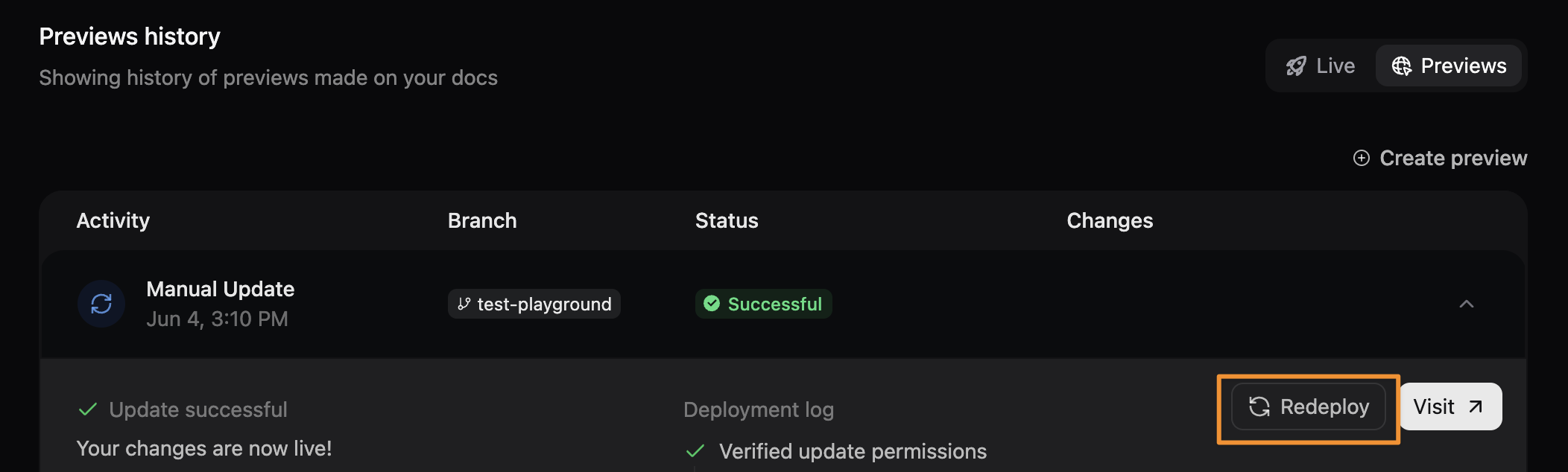
1. Select the preview from your [dashboard](https://dashboard.mintlify.com/).
2. Select **Redeploy**.
### Manual previews
You can manually create a preview for any branch.
1. Go to your [dashboard](https://dashboard.mintlify.com/).
2. Select **Previews**.
3. Select **Create preview**.
4. Enter your branch name.
5. Select **Create deployment**.
## Redeploying a preview
Redeploy a preview to refresh content or retry after a failed deployment.
1. Select the preview from your [dashboard](https://dashboard.mintlify.com/).
2. Select **Redeploy**.
 ## Sharing preview deployments
Preview deployments can be publicly accessible or restricted to authenticated users.
**Public access**: Preview URLs are publicly viewable by default. Share a preview link with anyone who needs to review your changes.
**Restricted access**: Enable preview deployment authentication to limit preview access to authenticated Mintlify users only. See [Authentication Setup](/authentication-personalization/authentication-setup) for more information.
## Sharing preview deployments
Preview deployments can be publicly accessible or restricted to authenticated users.
**Public access**: Preview URLs are publicly viewable by default. Share a preview link with anyone who needs to review your changes.
**Restricted access**: Enable preview deployment authentication to limit preview access to authenticated Mintlify users only. See [Authentication Setup](/authentication-personalization/authentication-setup) for more information.